【2026年版】グラスモーフィズムのコピペサンプル10選|おしゃれなガラス風UIデザイン集
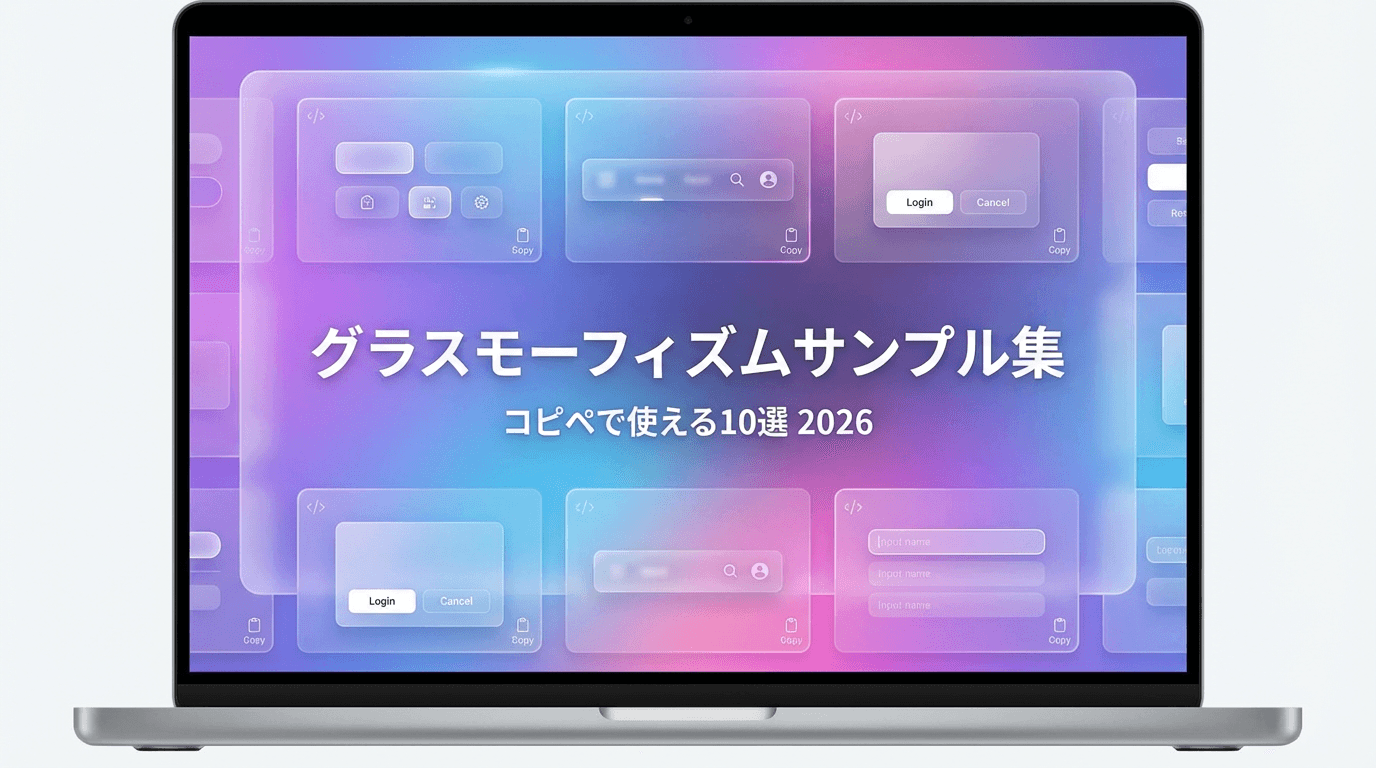
コピペで使える!厳選グラスモーフィズムサンプル 10 選
グラスモーフィズムを実装したいけれど、「どんなデザインがいいのかわからない」「パラメータの調整が難しい」と悩んでいませんか?
この記事では、すぐに使える実用的なグラスモーフィズムパターンを 10 種類厳選してご紹介します。用途別に分類しているので、あなたのプロジェクトに合ったデザインがきっと見つかるはずです。
この記事の使い方とコードのコピー方法
各サンプルには、以下の情報を掲載しています。
- 用途: どんな場面で使うのがおすすめか
- HTML/CSS コード: そのままコピペできるコード
- カスタマイズポイント: 調整のヒント
コードブロック内の HTML と CSS をコピーして、あなたのプロジェクトに貼り付けるだけで使用できます。クラス名やスタイルは自由に調整してください。
基本的な仕組みについては、グラスモーフィズムの基礎記事も合わせてご覧ください。
【カード型 UI】透明感のあるカードデザイン 3 選
1. シンプルな情報カード
用途: プロフィールカード、サービス紹介、ポートフォリオ
<div class="glass-card-simple">
  <h3>カードタイトル</h3>
  <p>ここに説明文が入ります。透明感のある美しいカードデザインです。</p>
  <button class="glass-button">詳細を見る</button>
</div>.glass-card-simple {
background: rgba(255, 255, 255, 0.1);
backdrop-filter: blur(10px);
border-radius: 20px;
border: 1px solid rgba(255, 255, 255, 0.18);
box-shadow: 0 8px 32px 0 rgba(31, 38, 135, 0.37);
padding: 30px;
max-width: 350px;
}
.glass-card-simple h3 {
color: #ffffff;
font-size: 24px;
margin-bottom: 16px;
}
.glass-card-simple p {
color: rgba(255, 255, 255, 0.8);
line-height: 1.6;
margin-bottom: 24px;
}
.glass-button {
background: rgba(255, 255, 255, 0.2);
backdrop-filter: blur(10px);
border: 1px solid rgba(255, 255, 255, 0.3);
border-radius: 8px;
color: #ffffff;
padding: 10px 24px;
cursor: pointer;
transition: all 0.3s ease;
}
.glass-button:hover {
background: rgba(255, 255, 255, 0.3);
transform: translateY(-2px);
}カスタマイズポイント: 背景の透明度を調整して、可読性とデザイン性のバランスを取りましょう。
2. ホバーエフェクト付きカード
用途: ブログカード、商品一覧、ギャラリー
<div class="glass-card-hover">
  <div class="card-image">
    <img src="image.jpg" alt="サンプル画像" />
  </div>
  <div class="card-content">
    <h3>記事タイトル</h3>
    <p>記事の概要がここに入ります。</p>
  </div>
</div>.glass-card-hover {
background: rgba(255, 255, 255, 0.08);
backdrop-filter: blur(15px);
border-radius: 16px;
border: 1px solid rgba(255, 255, 255, 0.15);
overflow: hidden;
transition: all 0.4s cubic-bezier(0.23, 1, 0.32, 1);
cursor: pointer;
max-width: 300px;
}
.glass-card-hover:hover {
background: rgba(255, 255, 255, 0.15);
transform: translateY(-8px);
box-shadow: 0 12px 48px 0 rgba(31, 38, 135, 0.5);
}
.card-image {
width: 100%;
height: 200px;
overflow: hidden;
}
.card-image img {
width: 100%;
height: 100%;
object-fit: cover;
transition: transform 0.4s ease;
}
.glass-card-hover:hover .card-image img {
transform: scale(1.1);
}
.card-content {
padding: 20px;
}
.card-content h3 {
color: #ffffff;
font-size: 20px;
margin-bottom: 12px;
}
.card-content p {
color: rgba(255, 255, 255, 0.7);
font-size: 14px;
line-height: 1.5;
}カスタマイズポイント: ホバー時の移動量(translateY)や拡大率(scale)を調整して、アニメーションの強さを変えられます。
3. アイコン付きサービスカード
用途: サービス紹介、機能一覧、価格プラン
<div class="glass-card-service">
  <div class="service-icon">💎</div>
  <h3>プレミアムプラン</h3>
  <p class="price">¥2,980/月</p>
  <ul class="features">
    <li>機能A</li>
    <li>機能B</li>
    <li>機能C</li>
  </ul>
  <button class="select-button">選択する</button>
</div>.glass-card-service {
background: rgba(255, 255, 255, 0.12);
backdrop-filter: blur(12px);
border-radius: 24px;
border: 2px solid rgba(255, 255, 255, 0.2);
box-shadow: 0 8px 32px 0 rgba(31, 38, 135, 0.37);
padding: 40px 30px;
text-align: center;
max-width: 300px;
}
.service-icon {
font-size: 48px;
margin-bottom: 20px;
}
.glass-card-service h3 {
color: #ffffff;
font-size: 24px;
margin-bottom: 8px;
}
.price {
color: #ffd700;
font-size: 32px;
font-weight: bold;
margin-bottom: 24px;
}
.features {
list-style: none;
padding: 0;
margin-bottom: 32px;
text-align: left;
}
.features li {
color: rgba(255, 255, 255, 0.85);
padding: 8px 0;
padding-left: 24px;
position: relative;
}
.features li::before {
content: "✓";
position: absolute;
left: 0;
color: #4ade80;
}
.select-button {
background: linear-gradient(135deg, #667eea 0%, #764ba2 100%);
border: none;
border-radius: 12px;
color: #ffffff;
padding: 14px 32px;
font-size: 16px;
font-weight: 600;
cursor: pointer;
width: 100%;
transition: transform 0.2s ease;
}
.select-button:hover {
transform: scale(1.05);
}カスタマイズポイント: アイコンは絵文字でも Font Awesome などのアイコンフォントでも使えます。
【ナビゲーション】ヘッダー・メニューデザイン 2 選
4. 固定ヘッダー(スクロール時も透明)
用途: サイトヘッダー、グローバルナビゲーション
<header class="glass-header">
  <div class="logo">Logo</div>
  <nav class="nav-menu">
    <a href="#home">Home</a>
    <a href="#about">About</a>
    <a href="#services">Services</a>
    <a href="#contact">Contact</a>
  </nav>
</header>.glass-header {
position: fixed;
top: 0;
left: 0;
right: 0;
background: rgba(255, 255, 255, 0.08);
backdrop-filter: blur(20px);
border-bottom: 1px solid rgba(255, 255, 255, 0.1);
padding: 20px 40px;
display: flex;
justify-content: space-between;
align-items: center;
z-index: 1000;
}
.logo {
color: #ffffff;
font-size: 24px;
font-weight: bold;
}
.nav-menu {
display: flex;
gap: 32px;
}
.nav-menu a {
color: rgba(255, 255, 255, 0.9);
text-decoration: none;
font-weight: 500;
transition: color 0.3s ease;
position: relative;
}
.nav-menu a:hover {
color: #ffffff;
}
.nav-menu a::after {
content: "";
position: absolute;
bottom: -4px;
left: 0;
width: 0;
height: 2px;
background: #ffffff;
transition: width 0.3s ease;
}
.nav-menu a:hover::after {
width: 100%;
}カスタマイズポイント: backdrop-filter: blur(20px)の値を調整して、ぼかしの強さを変えられます。
5. サイドナビゲーションメニュー
用途: ダッシュボード、管理画面、アプリ UI
<aside class="glass-sidebar">
  <div class="sidebar-header">
    <h2>Menu</h2>
  </div>
  <nav class="sidebar-nav">
    <a href="#dashboard" class="nav-item active">
      <span class="icon">📊</span>
      <span>Dashboard</span>
    </a>
    <a href="#analytics" class="nav-item">
      <span class="icon">📈</span>
      <span>Analytics</span>
    </a>
    <a href="#settings" class="nav-item">
      <span class="icon">⚙️</span>
      <span>Settings</span>
    </a>
  </nav>
</aside>.glass-sidebar {
width: 260px;
height: 100vh;
background: rgba(255, 255, 255, 0.06);
backdrop-filter: blur(25px);
border-right: 1px solid rgba(255, 255, 255, 0.1);
padding: 24px 0;
position: fixed;
left: 0;
top: 0;
}
.sidebar-header {
padding: 0 24px 24px;
border-bottom: 1px solid rgba(255, 255, 255, 0.1);
}
.sidebar-header h2 {
color: #ffffff;
font-size: 20px;
margin: 0;
}
.sidebar-nav {
padding: 16px 12px;
display: flex;
flex-direction: column;
gap: 8px;
}
.nav-item {
display: flex;
align-items: center;
gap: 12px;
padding: 12px 16px;
color: rgba(255, 255, 255, 0.7);
text-decoration: none;
border-radius: 8px;
transition: all 0.3s ease;
}
.nav-item:hover {
background: rgba(255, 255, 255, 0.1);
color: #ffffff;
}
.nav-item.active {
background: rgba(255, 255, 255, 0.15);
color: #ffffff;
}
.nav-item .icon {
font-size: 20px;
}カスタマイズポイント: サイドバーの幅(width)を調整して、コンテンツ量に合わせられます。
【モーダル・ポップアップ】オーバーレイデザイン 2 選
6. 中央表示のモーダルウィンドウ
用途: 確認ダイアログ、フォーム、詳細表示
<div class="modal-overlay">
  <div class="glass-modal">
    <div class="modal-header">
      <h3>モーダルタイトル</h3>
      <button class="close-button">×</button>
    </div>
    <div class="modal-body">
      <p>モーダルの内容がここに入ります。</p>
    </div>
    <div class="modal-footer">
      <button class="btn-secondary">キャンセル</button>
      <button class="btn-primary">確定</button>
    </div>
  </div>
</div>.modal-overlay {
position: fixed;
top: 0;
left: 0;
right: 0;
bottom: 0;
background: rgba(0, 0, 0, 0.5);
backdrop-filter: blur(5px);
display: flex;
align-items: center;
justify-content: center;
z-index: 2000;
}
.glass-modal {
background: rgba(255, 255, 255, 0.15);
backdrop-filter: blur(20px);
border-radius: 20px;
border: 1px solid rgba(255, 255, 255, 0.2);
box-shadow: 0 12px 48px 0 rgba(0, 0, 0, 0.3);
max-width: 500px;
width: 90%;
overflow: hidden;
}
.modal-header {
display: flex;
justify-content: space-between;
align-items: center;
padding: 24px;
border-bottom: 1px solid rgba(255, 255, 255, 0.1);
}
.modal-header h3 {
color: #ffffff;
margin: 0;
font-size: 20px;
}
.close-button {
background: none;
border: none;
color: rgba(255, 255, 255, 0.7);
font-size: 32px;
cursor: pointer;
line-height: 1;
transition: color 0.2s ease;
}
.close-button:hover {
color: #ffffff;
}
.modal-body {
padding: 24px;
color: rgba(255, 255, 255, 0.85);
line-height: 1.6;
}
.modal-footer {
display: flex;
justify-content: flex-end;
gap: 12px;
padding: 16px 24px;
border-top: 1px solid rgba(255, 255, 255, 0.1);
}
.btn-secondary,
.btn-primary {
padding: 10px 24px;
border-radius: 8px;
border: none;
cursor: pointer;
font-size: 14px;
font-weight: 600;
transition: all 0.2s ease;
}
.btn-secondary {
background: rgba(255, 255, 255, 0.1);
color: rgba(255, 255, 255, 0.9);
}
.btn-secondary:hover {
background: rgba(255, 255, 255, 0.15);
}
.btn-primary {
background: linear-gradient(135deg, #667eea 0%, #764ba2 100%);
color: #ffffff;
}
.btn-primary:hover {
transform: translateY(-1px);
box-shadow: 0 4px 12px rgba(102, 126, 234, 0.4);
}カスタマイズポイント: オーバーレイの背景色と透明度を調整して、背景の見え方を変えられます。
7. サイドパネル型オーバーレイ
用途: 設定パネル、フィルター、メニュー展開
<div class="glass-side-panel">
  <div class="panel-header">
    <h3>設定</h3>
    <button class="close-btn">✕</button>
  </div>
  <div class="panel-content">
    <div class="setting-item">
      <label>通知</label>
      <input type="checkbox" checked />
    </div>
    <div class="setting-item">
      <label>ダークモード</label>
      <input type="checkbox" />
    </div>
    <div class="setting-item">
      <label>言語</label>
      <select>
        <option>日本語</option>
        <option>English</option>
      </select>
    </div>
  </div>
</div>.glass-side-panel {
position: fixed;
right: 0;
top: 0;
height: 100vh;
width: 350px;
background: rgba(255, 255, 255, 0.1);
backdrop-filter: blur(20px);
border-left: 1px solid rgba(255, 255, 255, 0.15);
box-shadow: -8px 0 32px rgba(0, 0, 0, 0.3);
z-index: 2000;
display: flex;
flex-direction: column;
}
.panel-header {
display: flex;
justify-content: space-between;
align-items: center;
padding: 24px;
border-bottom: 1px solid rgba(255, 255, 255, 0.1);
}
.panel-header h3 {
color: #ffffff;
margin: 0;
font-size: 20px;
}
.close-btn {
background: rgba(255, 255, 255, 0.1);
border: none;
color: #ffffff;
width: 32px;
height: 32px;
border-radius: 50%;
cursor: pointer;
transition: background 0.2s ease;
}
.close-btn:hover {
background: rgba(255, 255, 255, 0.2);
}
.panel-content {
flex: 1;
padding: 24px;
overflow-y: auto;
}
.setting-item {
display: flex;
justify-content: space-between;
align-items: center;
padding: 16px 0;
border-bottom: 1px solid rgba(255, 255, 255, 0.08);
}
.setting-item label {
color: rgba(255, 255, 255, 0.9);
font-size: 16px;
}
.setting-item input[type="checkbox"] {
width: 20px;
height: 20px;
cursor: pointer;
}
.setting-item select {
background: rgba(255, 255, 255, 0.1);
border: 1px solid rgba(255, 255, 255, 0.2);
border-radius: 6px;
color: #ffffff;
padding: 6px 12px;
cursor: pointer;
}カスタマイズポイント: パネルの幅(width)を調整して、コンテンツに合わせられます。
【ボタン・CTA】アクションを促すデザイン 3 選
8. グラデーション背景とグラスの組み合わせ
用途: メイン CTA、ヒーローセクションのボタン
.glass-cta-button {
  position: relative;
  padding: 16px 48px;
  font-size: 18px;
  font-weight: 600;
  color: #ffffff;
  border: none;
  border-radius: 50px;
  cursor: pointer;
  overflow: hidden;
  background: rgba(255, 255, 255, 0.15);
  backdrop-filter: blur(10px);
  border: 2px solid rgba(255, 255, 255, 0.3);
  box-shadow: 0 8px 24px rgba(0, 0, 0, 0.2);
  transition: all 0.3s ease;
}

.glass-cta-button::before {
  content: "";
  position: absolute;
  top: 0;
  left: -100%;
  width: 100%;
  height: 100%;
  background: linear-gradient(
    90deg,
    transparent,
    rgba(255, 255, 255, 0.3),
    transparent
  );
  transition: left 0.5s ease;
}

.glass-cta-button:hover {
  transform: translateY(-2px);
  box-shadow: 0 12px 32px rgba(0, 0, 0, 0.3);
  background: rgba(255, 255, 255, 0.25);
}

.glass-cta-button:hover::before {
  left: 100%;
}
9. アニメーション付き CTA ボタン
用途: ダウンロードボタン、登録ボタン
.animated-glass-button {
  padding: 14px 32px;
  font-size: 16px;
  font-weight: 600;
  color: #ffffff;
  background: rgba(255, 255, 255, 0.12);
  backdrop-filter: blur(12px);
  border: 1px solid rgba(255, 255, 255, 0.25);
  border-radius: 12px;
  cursor: pointer;
  position: relative;
  overflow: hidden;
  transition: all 0.4s cubic-bezier(0.23, 1, 0.32, 1);
}

.animated-glass-button::after {
  content: "";
  position: absolute;
  top: 50%;
  left: 50%;
  width: 0;
  height: 0;
  border-radius: 50%;
  background: rgba(255, 255, 255, 0.2);
  transform: translate(-50%, -50%);
  transition: width 0.6s ease, height 0.6s ease;
}

.animated-glass-button:hover {
  transform: scale(1.05);
  box-shadow: 0 8px 24px rgba(102, 126, 234, 0.4);
}

.animated-glass-button:hover::after {
  width: 300px;
  height: 300px;
}
10. フローティングアクションボタン
用途: ページトップへ戻る、チャット起動、アクションボタン
.glass-fab {
  position: fixed;
  bottom: 32px;
  right: 32px;
  width: 64px;
  height: 64px;
  border-radius: 50%;
  background: rgba(255, 255, 255, 0.15);
  backdrop-filter: blur(15px);
  border: 1px solid rgba(255, 255, 255, 0.3);
  box-shadow: 0 8px 32px rgba(0, 0, 0, 0.3);
  display: flex;
  align-items: center;
  justify-content: center;
  cursor: pointer;
  transition: all 0.3s ease;
  z-index: 1000;
}

.glass-fab:hover {
  transform: translateY(-4px) scale(1.1);
  background: rgba(255, 255, 255, 0.25);
  box-shadow: 0 12px 48px rgba(0, 0, 0, 0.4);
}

.glass-fab::before {
  content: "↑";
  font-size: 28px;
  color: #ffffff;
  font-weight: bold;
}
背景画像の選び方のコツ
グラスモーフィズムは、背景次第で印象が大きく変わります。
グラスモーフィズムに合う背景とは
推奨される背景
- カラフルなグラデーション(2〜3 色)
- ぼやけた風景写真
- 抽象的な幾何学パターン
- 動きのあるアニメーション背景
- 明暗のコントラストがある背景
避けるべき背景
- 白や黒の単色(効果が目立たない)
- 細かいテキストが多い背景
- コントラストが低すぎる背景
カラフルなグラデーション背景がおすすめ
グラスモーフィズムと最も相性が良いのは、カラフルなグラデーション背景です。
/* おすすめグラデーション背景 */
.background-1 {
  background: linear-gradient(135deg, #667eea 0%, #764ba2 100%);
}

.background-2 {
  background: linear-gradient(135deg, #f093fb 0%, #f5576c 100%);
}

.background-3 {
  background: linear-gradient(135deg, #4facfe 0%, #00f2fe 100%);
}

.background-4 {
  background: linear-gradient(135deg, #43e97b 0%, #38f9d7 100%);
}
コントラストを意識する
グラス要素と背景のコントラストが重要です。
- 明るい背景: グラス要素を少し暗めに(
rgba(0, 0, 0, 0.1)) - 暗い背景: グラス要素を少し明るめに(
rgba(255, 255, 255, 0.1)) - カラフルな背景: 白ベースのグラスが万能(
rgba(255, 255, 255, 0.1))
自分好みのデザインを手軽に作るには
ここまで 10 種類のグラスモーフィズムサンプルを紹介してきましたが、実際のプロジェクトでは「この配色をもう少し調整したい」「ぼかしの強さを変えたい」という場面が多いのではないでしょうか。
パラメータを細かく調整したい場合、コードを何度も書き直してブラウザで確認する作業は非効率的です。
playcraft のグラスモーフィズムジェネレーターなら、スライダーを動かすだけでリアルタイムにプレビューを確認でき、理想のデザインを素早く見つけられます。
グラスモーフィズムジェネレーター
トレンドのグラスモーフィズムデザインを簡単に作成。背景のぼかしや透明度を調整してモダンなUIを実現できます。
まとめ
この記事では、実用的なグラスモーフィズムサンプル 10 種類を用途別に紹介しました。
サンプルのまとめ
- カード型 UI: 3 種類(シンプル・ホバー・サービス)
- ナビゲーション: 2 種類(ヘッダー・サイドバー)
- モーダル: 2 種類(中央・サイドパネル)
- ボタン: 3 種類(グラデーション・アニメーション・FAB)
これらのサンプルをそのまま使っても良いですし、パラメータを調整してオリジナルのデザインを作るのもおすすめです。
グラスモーフィズムを活用して、モダンで洗練された UI デザインを実現してください!
最後まで読んでいただき、ありがとうございました。